Table of Contents
What this lesson is about
Claude Code is a powerful tool, but power without boundaries can cause serious problems — especially when you are still learning. This lesson explains how Claude Code decides when to act on its own and when to stop and ask for your approval first. Understanding this system will help you work confidently without worrying that a single wrong instruction could break something important.
Core concept: The careful new employee
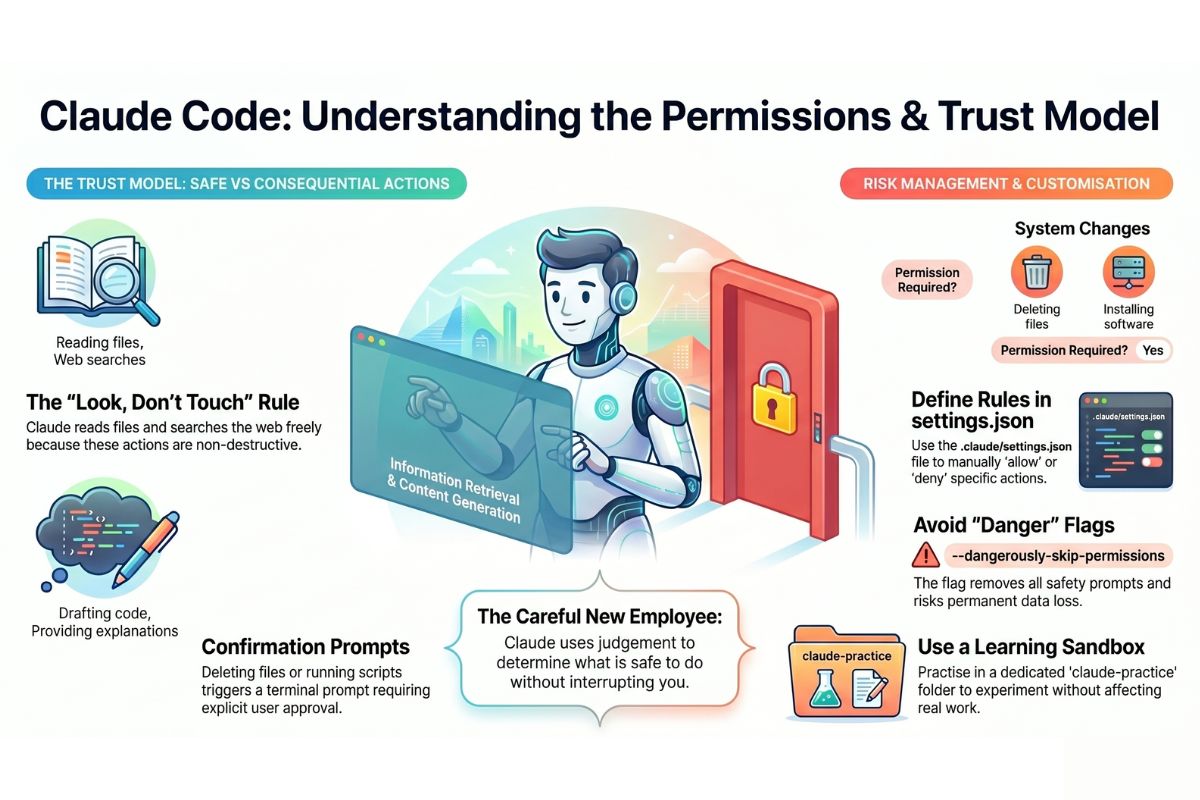
Imagine you have just hired a highly competent new employee — someone who is well-qualified, experienced, and genuinely capable of getting things done. On their first week, they would not walk into the office and start deleting old files, sending emails on your behalf, or reorganising your entire client database without checking with you first. Not because they cannot do those things, but because they understand that acting without permission on important matters can cause damage that is very hard to undo.
They would, however, read through your existing files to understand the business, look things up online to answer your questions, and prepare documents for your review — all without needing to ask permission every five minutes. They use good judgement about what is safe to do freely and what requires your sign-off first.
Claude Code works in exactly the same way.
What Claude does freely (no permission needed)
Some actions carry no real risk because they do not change anything. Claude Code performs these without asking:
| Action | Example | Why it is safe |
|---|---|---|
| Reading files | Looking at your index.html to understand your project | Nothing is changed or deleted |
| Web searches | Looking up documentation or error messages | Your computer is untouched |
| Providing information | Explaining what a piece of code does | Pure output, no side effects |
| Generating new content | Writing a draft function for your review | Nothing is saved until you say so |
Think of these as the equivalent of your new employee reading a memo. No harm done.
What triggers a confirmation prompt
Other actions are more consequential — they change things that may be difficult or impossible to reverse. For these, Claude Code will pause and ask for your explicit approval before proceeding.
Actions that trigger a confirmation prompt include:
- Deleting files — once a file is deleted, it may not be recoverable
- Running scripts — a script (a small programme that executes a series of commands automatically) can make sweeping changes to your system
- Modifying sensitive folders — areas of your computer that affect how applications or your operating system function
- Installing software — adding new programmes or packages to your system
- Making changes to configuration files — files that control how your applications behave
When Claude Code asks for confirmation, you will see a prompt in the terminal (the text-based window where you type commands) that looks something like this:
Claude wants to run the following command:
  rm -rf ./old-project-files

Allow this action? (y/n)
You simply type y to allow it or n to decline. This gives you a moment to think before anything irreversible happens.
How to configure trust levels
What is .claude/settings.json?
Claude Code allows you to customise its behaviour using a configuration file (a file that stores your preferences and settings). This file is called settings.json and it lives inside a hidden folder named .claude in your project’s root directory (the main folder of your project).
The dot at the beginning of .claude is not a typo — on Mac and Linux systems, folders that start with a dot are hidden by default. They are used for configuration and settings that do not need to clutter your everyday view.
To find this file, look for it at this path within your project:
your-project-folder/
└── .claude/
    └── settings.json
What you can configure
The settings.json file lets you tell Claude Code which actions it may perform automatically and which it must always ask permission for. Here is a simple, real-world example:
{
  "permissions": {
    "allow": [
      "read_file",
      "web_search"
    ],
    "deny": [
      "delete_file",
      "run_shell_command"
    ]
  }
}
What this example does, in plain English:
"allow"— lists actions Claude may always do without asking. Here, reading files and searching the web are always permitted."deny"— lists actions Claude must never do, even if you ask it to. Here, deleting files and running shell commands (direct instructions to the operating system) are blocked entirely.
This is especially useful when you are working on a real project and want an extra layer of protection. You are essentially setting the rules of engagement up front.
Tip: You do not need to create this file manually when you are just starting out. Claude Code works safely with its default settings. Come back to this once you feel comfortable with the basics.
The --dangerously-skip-permissions flag — and why you should almost never use it
What it does
When you start Claude Code from the terminal, you can add extra instructions called flags (words beginning with --) that change how it behaves. The flag --dangerously-skip-permissions tells Claude Code to skip all confirmation prompts and simply do whatever it is asked, without pausing to check with you.
It would look like this in the terminal:
claude --dangerously-skip-permissions
Why this is dangerous
The name is not being dramatic. Here is a real-world consequence:
Imagine you are frustrated with a slow task and you tell Claude: “Clean up everything that is not needed in this project.” Normally, Claude would list what it plans to delete and ask you to confirm. With --dangerously-skip-permissions active, it would simply delete those files — instantly, silently, and possibly permanently.
If those files happened to include your only copy of a client proposal, a months-old piece of work, or a critical configuration file, there is no undo button.
When is it ever appropriate?
Only in a true sandbox environment (explained below) where the entire folder is throwaway and nothing of value could possibly be lost. Even then, it is rarely necessary.
As a general rule: if you feel tempted to use this flag, that is a signal to slow down, not speed up.
Sandbox vs real project environments
The difference
| Environment | What it is | Risk level |
|---|---|---|
| Sandbox / test folder | A dedicated practice folder containing nothing important | Very low — mistakes are harmless |
| Real project | Your actual work: client files, live code, business documents | High — mistakes can be costly |
Why this distinction matters
When you are learning, your instructions to Claude will sometimes be imprecise. You might ask it to do something you did not fully think through, or use a phrase that Claude interprets differently than you intended. In a sandbox, this results in a learning moment. In a real project, it could result in lost work.
Think of it like learning to drive in an empty car park before joining a motorway. The car works exactly the same way — but the consequences of a mistake are completely different.
How to set up a safe learning environment
Setting up a dedicated practice folder takes less than two minutes and it will give you complete peace of mind while you learn.
Create a practice folder
Open your terminal and type the following commands one at a time, pressing Enter after each:
mkdir claude-practice
cd claude-practice
What these do:
mkdirstands for “make directory” — it creates a new foldercdstands for “change directory” — it moves you into that folder
Your terminal is now “inside” the claude-practice folder. Any files Claude creates or deletes here have absolutely no effect on the rest of your computer.
Add a test file to work with
echo "This is a test file for Claude practice." > test-file.txt
This creates a simple text file inside your practice folder. You can now ask Claude to read it, edit it, copy it, or even delete it — completely safely.
What makes this safe
- There are no important files here
- Nothing in this folder is connected to your real work
- If Claude deletes something by mistake, there is nothing of value to lose
- You can delete the entire folder at any time and start fresh
Best practice: Always do your first experiments with any new Claude Code technique inside this practice folder before using it on a real project.
Practical Exercise
Work through these steps in order. Take your time — there is no rush.
a. Open your terminal and create a safe practice folder by running these two commands:
mkdir claude-practice
cd claude-practice
Confirm you are in the right place by typing pwd (which stands for “print working directory”) and pressing Enter. You should see a path ending in claude-practice.
b. Create two test files inside the folder:
echo "File one — safe to delete." > file-one.txt
echo "File two — also safe to delete." > file-two.txt
Now start Claude Code by typing claude and pressing Enter. Ask it: “Please list the files in this folder and tell me what is in each one.” Notice that Claude does this freely, without asking for permission — reading files is always safe.
c. Now ask Claude: “Please delete file-one.txt.” Observe what happens. Claude should pause and ask for your confirmation before doing anything. Type y to allow it, then verify the deletion worked by typing ls (which lists all files in the current folder) and pressing Enter. Only file-two.txt should remain.
You have now seen both sides of the permission system in action: free actions and confirmed actions.
Common problems and how to fix them
Claude is not asking for permission — it is just doing things
What is happening: You may have previously used the --dangerously-skip-permissions flag, or your settings.json file has been configured to allow certain actions automatically.
How to fix it: Close Claude Code and restart it without any flags, simply by typing claude and pressing Enter. If you have a settings.json file, open it and check whether the action in question is listed under "allow". Remove it from the allow list if you want Claude to ask first.
I cannot find the .claude folder
What is happening: The folder is hidden because its name starts with a dot. Your file browser hides these by default.
How to fix it: On a Mac, press Command + Shift + . (full stop) in Finder to toggle hidden files on and off. On Windows, open File Explorer, click “View” in the top menu, and tick “Hidden items.” Alternatively, in your terminal, type ls -a instead of ls — the -a flag shows all files including hidden ones.
Claude declined to do something I actually want it to do
What is happening: Your settings.json has that action listed under "deny", or Claude’s default behaviour is blocking it.
How to fix it: If you are in your practice folder and you are certain the action is safe, you can either approve the confirmation prompt when it appears, or edit your settings.json to move that action from "deny" to "allow". If you are not sure whether it is safe, that uncertainty is your answer — do not override the protection.
The settings.json file has a red error when I save it
What is happening: JSON (the format used for settings.json) is very strict about syntax. A missing comma, an extra bracket, or an unclosed quotation mark will cause an error.
How to fix it: Copy your file contents into a free online JSON validator (search for “JSON validator” in any web browser) and it will highlight exactly where the problem is. Fix that character and save again.
What you have learned in this lesson
- Claude Code behaves like a careful new employee: capable, but designed to check before taking consequential actions
- Safe, reversible actions (reading files, searching the web) happen freely without any confirmation prompt
- Potentially irreversible actions (deleting files, running scripts, modifying system folders) always trigger a confirmation prompt first
- The
.claude/settings.jsonfile lets you customise exactly which actions are always allowed and which are always blocked - The
--dangerously-skip-permissionsflag removes all safety prompts and should almost never be used outside a throwaway sandbox environment - A sandbox or practice folder is a dedicated space for learning and experimentation where mistakes have zero real-world consequences
- Setting up a
claude-practicefolder before experimenting is the single most important habit you can build as a beginner