Table of Contents
What this lesson is about
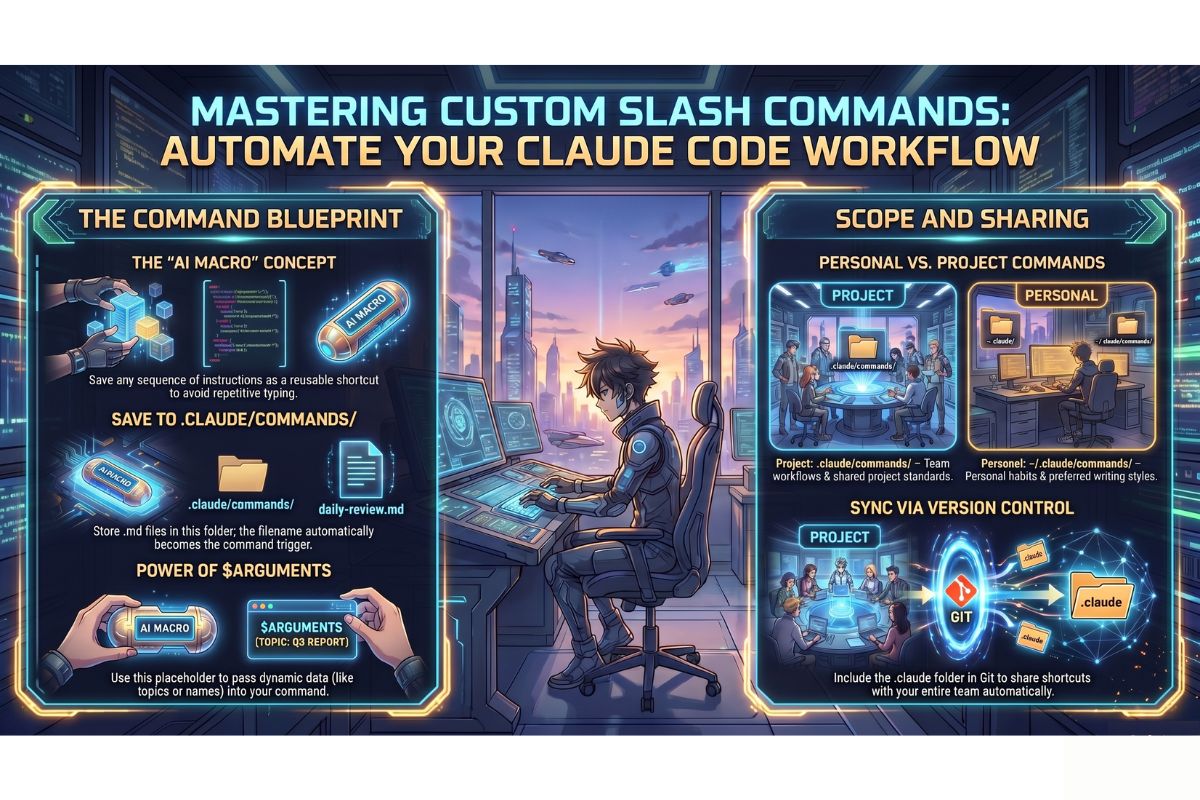
Claude Code comes with a set of built-in slash commands, but you can also create your very own. Custom slash commands let you save any instruction or sequence of instructions as a reusable shortcut — one you can trigger instantly with a single typed command. In this lesson you will learn how to create those shortcuts, where to store them, how to make them flexible with placeholders, and how to share them with your team.
Core concept: the Excel macro analogy
If you have ever used Microsoft Excel, you may have come across something called a macro. A macro is a recording of a series of actions — clicking buttons, formatting cells, running calculations — that you save under a name. The next time you need to do that same series of actions, you just run the macro and Excel does it all for you automatically, in seconds.
Custom slash commands work in exactly the same way, but for Claude.
Instead of recording mouse clicks, you write out your instructions once in a plain text file. You give that file a name. From that point on, whenever you type /that-name in Claude Code, Claude reads your saved instructions and carries them out — without you having to type them again.
Think of each custom slash command as a saved conversation starter: a ready-made, detailed prompt that you have pre-written and stored, so you never have to compose it from scratch again.
Where custom commands live
The .claude/commands/ folder
Claude Code looks for your custom commands in a special folder called .claude/commands/. This folder sits inside your project — the main folder that holds all your work files.
A folder (also called a directory) is simply a container on your computer that holds files, exactly like a physical folder in a filing cabinet. The .claude folder is a hidden folder (the dot at the beginning of the name is what makes it hidden on most computers) that Claude Code uses to store its project-specific settings.
Here is what the folder structure looks like. Think of this as a map of where things live on your computer:
my-project/                     ← Your main project folder
├── .claude/                    ← Claude's settings folder (hidden)
│   └── commands/               ← Your custom commands live here
│       ├── daily-review.md     ← A command called /daily-review
│       └── draft-email.md      ← A command called /draft-email
├── reports/                    ← Other files in your project
└── notes.txt
The name of the file becomes the name of the command. So a file called daily-review.md becomes the command /daily-review. It really is that simple.
The .md extension stands for Markdown, which is just a plain text file with some light formatting. You do not need to know Markdown to write command files — plain sentences work perfectly well.
How a command file works
A command file is a text file containing the instructions you want Claude to follow whenever you run that command. You write it once, save it, and Claude remembers it.
Here is a simple example. Imagine you regularly ask Claude to summarise the status of a project. Without a custom command, you would type something like this every single time:
“Please look at the files in this project and give me a plain-English summary of what we are currently working on, what is finished, and what still needs to be done. Keep it under 200 words.”
With a custom command, you save that text in a file called project-status.md and from then on you just type /project-status. Claude does the rest.
Here is what that command file would look like:
Please look at the files in this project and give me a plain-English
summary of what we are currently working on, what is finished, and
what still needs to be done. Keep it under 200 words.
That is it. No special formatting required. Claude reads the file content as your prompt.
You can also add optional frontmatter at the top of the file — a short block of settings enclosed between two lines of three dashes (---). Think of frontmatter as a label on the folder that tells Claude a little extra information about the command:
---
description: Summarise the current project status in under 200 words
---

Please look at the files in this project and give me a plain-English
summary of what we are currently working on, what is finished, and
what still needs to be done. Keep it under 200 words.
The description line is what appears in the autocomplete menu when you type / in Claude Code, so other people (and future-you) can see at a glance what the command does.
Making commands flexible with $ARGUMENTS
Some commands are useful exactly as written. Others need a little bit of variable information each time you use them — for example, a topic, a name, or a date.
That is where the $ARGUMENTS placeholder comes in. When Claude Code sees $ARGUMENTS inside a command file, it replaces that word with whatever you type after the command name.
Think of $ARGUMENTS as a blank you leave in a form letter. The rest of the letter is pre-written; only the blank changes each time.
Here is an example. Suppose you want a command that looks up information on any topic you choose:
File: .claude/commands/research.md
---
description: Research a topic and give me a concise summary
argument-hint: [topic]
---

Please research the following topic and give me a clear, jargon-free
summary of three to five paragraphs suitable for a non-technical reader:

$ARGUMENTS
Now when you type /research renewable energy in South Africa, Claude replaces $ARGUMENTS with “renewable energy in South Africa” and runs the full prompt with that topic filled in.
The argument-hint line in the frontmatter tells Claude what kind of input to expect, which helps with the autocomplete suggestions.
Real example 1: /daily-review
This command checks what has changed in your project recently and produces a morning summary — useful for picking up where you left off after a break or weekend.
File: .claude/commands/daily-review.md
---
description: Produce a morning summary of recent project changes
---

Good morning. Please review this project and produce a brief morning
summary for me. Cover the following:

1. What files were most recently changed, and what do those changes
   appear to be about?
2. Are there any tasks or to-do items visible in the files that look
   incomplete?
3. What would you recommend I focus on first today, and why?

Write your response in plain English, in three short sections matching
the three questions above. Keep the whole response under 300 words.
Assume I have not looked at this project since yesterday.
To use it: simply type /daily-review when you open Claude Code in the morning. Claude will scan your project and give you a focused, readable briefing.
Real example 2: /draft-email
This command takes a topic and writes a ready-to-send professional email — saving you the blank-page problem every time you need to write something.
File: .claude/commands/draft-email.md
---
description: Draft a professional email on the given topic
argument-hint: [topic or brief description]
---

Please draft a professional, polite email based on the following topic
or description:

$ARGUMENTS

The email should:
- Have a clear, specific subject line (include it at the top)
- Use a warm but professional tone
- Be concise — no longer than three short paragraphs
- End with a clear call to action or next step
- Use South African English spelling (colour, organise, licence, etc.)

Format the output as:
Subject: [subject line here]
[body of the email here]
To use it: type /draft-email follow up with client about outstanding invoice from March. Claude will fill in $ARGUMENTS with your description and produce a complete, ready-to-send email draft.
Personal commands vs project commands
There are two places where you can store custom commands, and the difference matters:
| Type | Location | Who can use it | Best for |
|---|---|---|---|
| Project command | .claude/commands/ inside your project folder | Anyone working in that project | Team workflows, shared standards, project-specific tasks |
| Personal command | ~/.claude/commands/ in your home folder | Only you, across all your projects | Personal habits, your preferred writing style, shortcuts you use everywhere |
A quick note on the ~ symbol: this is a shorthand for your home folder — the main folder on your computer that holds all your personal files and settings (similar to “My Documents” on Windows). So ~/.claude/commands/ means “a .claude/commands/ folder inside my personal home folder.”
Use project commands when the command is useful to everyone on the team — a standard review checklist, a way to generate a report in your company’s style, or a shortcut that matches how your business works.
Use personal commands when the command reflects your own preferences — your preferred email tone, the way you like summaries structured, or shortcuts for tasks only you do.
Sharing commands with your team
Project commands have a powerful advantage: because they are stored inside the project folder itself, they can be shared with your whole team automatically.
Most teams use a system called version control (commonly a tool called Git) to keep track of changes to their project files and share those files with each other. When your .claude/commands/ folder is included in that system, everyone on the team gets the same set of custom commands the moment they download the project.
This means:
- A new team member joins and immediately has access to all your team’s established Claude shortcuts — no setup required on their part.
- When someone improves or adds a command, everyone on the team benefits automatically.
- Your commands become part of your team’s documented way of working, sitting alongside your other project files.
To make this happen, you simply ensure that the .claude folder is not excluded from your version control system. (Sometimes hidden folders starting with a dot are excluded by default — if you are not sure, ask your developer or IT support to confirm that .claude/ is being tracked.)
If your team does not use version control, you can share commands the old-fashioned way: copy the .claude/commands/ folder and send it to colleagues, who place it in the same location in their copy of the project.
Practical exercise
In this exercise you will create your first custom slash command — a /weekly-summary command that produces a brief end-of-week summary of your project.
a. Open your project folder in Claude Code. In the terminal (the text-input area), type the following command and press Enter to create the commands folder if it does not already exist:
mkdir -p .claude/commands
mkdir stands for “make directory” — it creates a new folder. The -p part tells it to create any missing parent folders along the way, so you do not get an error if .claude does not exist yet.
b. Create a new file called weekly-summary.md inside the .claude/commands/ folder. You can ask Claude Code to do this for you by typing:
Create a file at .claude/commands/weekly-summary.md
Then, when Claude asks what to put in the file, paste in the following content:
---
description: Produce a brief end-of-week project summary
---

Please produce a brief end-of-week summary of this project. Cover:

1. What was accomplished this week (based on recent file changes)?
2. What appears to still be in progress or incomplete?
3. What are the most important things to pick up next week?

Write in plain English. Use three short sections. Keep the total
response under 250 words. Assume this is being read on a Friday
afternoon.
c. Test your new command. Type /weekly-summary and press Enter. Claude should read your command file and produce a structured summary of the project. If the command does not appear in the autocomplete list immediately, type / and scroll through the options — it may take a moment for Claude Code to register the new file.
Common problems and how to fix them
The command does not appear when I type /
Claude Code scans for command files when a session starts. If you created the file after your current session was already open, you may need to start a fresh session. Close and reopen Claude Code, then try typing / again.
Also check that your file is saved in exactly the right place: .claude/commands/your-command-name.md. The file must be inside the commands folder, which must be inside the .claude folder. Even one folder out of place and Claude Code will not find it.
The command runs but ignores my $ARGUMENTS
Double-check that you have typed $ARGUMENTS in all capital letters with a dollar sign at the beginning. It is case-sensitive, which means $arguments or $Arguments will not work — only $ARGUMENTS.
Also make sure you are actually passing something after the command name. For example, /draft-email on its own with nothing after it will leave $ARGUMENTS blank. Type /draft-email followed by your topic, like /draft-email request for a meeting extension.
The command file seems to be ignored completely
Check that your file has a .md extension. A file called daily-review (with no extension) will not be recognised. It must be called daily-review.md.
Also check for typos in the folder name. It must be .claude (with a dot and all lowercase) and commands (all lowercase). The names are exact.
My team members cannot see the commands
If your team uses version control and the .claude folder is not showing up for others, it is likely that the folder is being excluded — either deliberately or by default. Ask your developer to check the .gitignore file (a file that lists what version control should ignore) and ensure that .claude/ is not listed there.
What you have learned in this lesson
- Custom slash commands are saved prompts stored as Markdown files in the
.claude/commands/folder inside your project - The filename becomes the command name —
daily-review.mdbecomes/daily-review - Command files contain plain-English instructions; optional frontmatter (between
---lines) adds a description and other settings - The
$ARGUMENTSplaceholder lets you pass dynamic input to a command each time you use it — type the command name followed by your input, and Claude fills in the blank - Project commands (
.claude/commands/) are available to everyone working in that project; personal commands (~/.claude/commands/) are available only to you, across all projects - Sharing commands with a team is as simple as including the
.claudefolder in version control — new team members get all the shortcuts automatically - Custom commands save time, create consistency, and turn your best prompts into permanent, reusable tools