Table of Contents
What this lesson is about
Bash (pronounced “bash”) is a language that lets Claude run commands directly on your computer — not just advise you on what to do, but actually do it. This lesson teaches you what bash can accomplish, how sandboxing works, why absolute paths matter, and the critical safety rules for running commands safely.
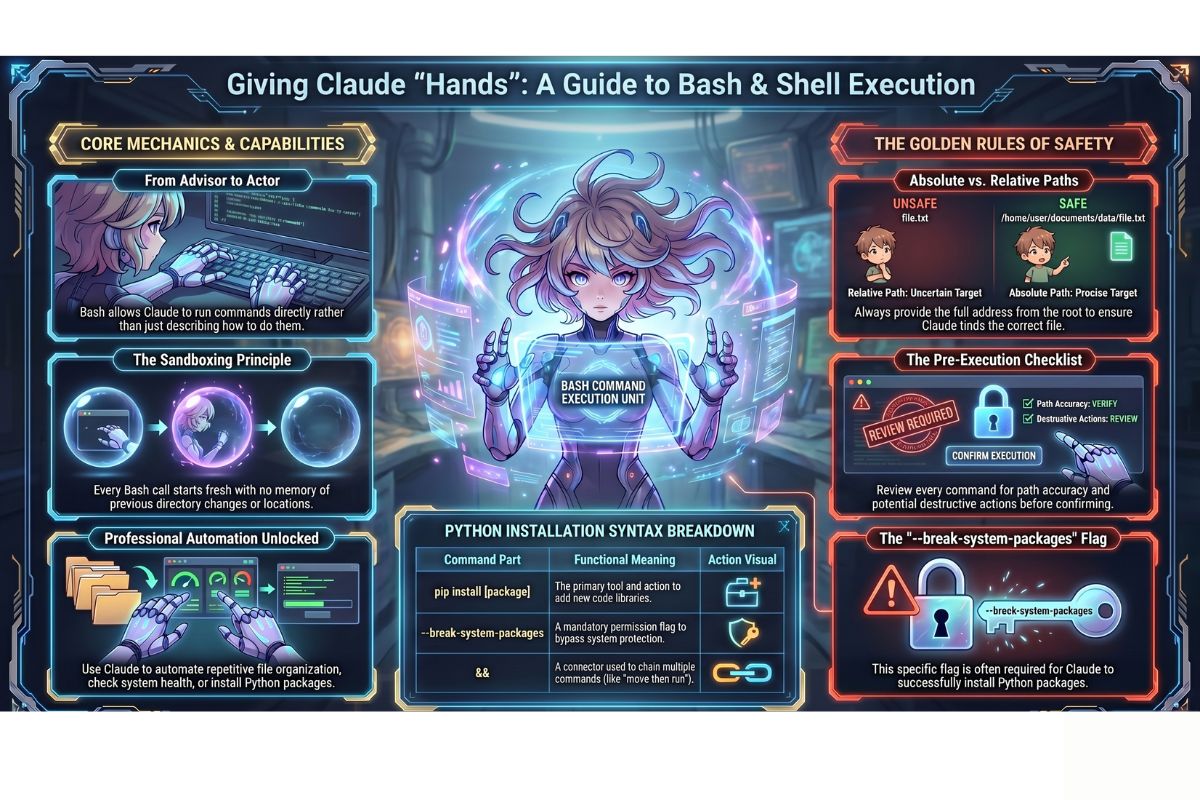
Core concept — Giving Claude hands to work with
Until now, Claude could describe things: “To install a Python package, you would type this command.” But Claude couldn’t actually run the command. It was like having an expert advisor who could only talk, not act.
Bash changes that completely. Think of it this way:
Previously, Claude was like a knowledgeable person without hands. It could tell you exactly what to do, but you had to do it yourself.
Now, with bash, Claude has hands. Claude can:
- Run commands on your computer
- Install software
- Check file systems
- Organise folders
- Automate repetitive tasks
- Actually do the work, not just describe it
This is powerful. But it’s also why we need safety rules — hands can cause damage if you’re not careful.
What bash is — A language for talking to your computer
Bash is a command language. Think of it as a way to give instructions directly to your computer’s operating system (whether that’s Windows, Mac, or Linux).
When you open a terminal (a text-based window where you type commands) or command prompt (the Windows version), you’re using bash to talk to your computer in its native language.
For example, instead of clicking folders and files with your mouse, bash lets you say: “Show me all the files in this folder” or “Move this file to that location” using typed commands.
Claude Code can now run these bash commands for you — which means Claude can automate tasks that would normally take you clicks and time.
What bash unlocks — Real examples of what Claude can do
Here are the kinds of tasks bash makes possible:
Running scripts and programs
Claude can run Python scripts, Node.js programmes, or any installed software. Instead of you clicking an icon and waiting, Claude can automate it.
Installing tools and packages
Claude can install software you need. For example, Claude can install a Python package (a reusable piece of code) directly, without you having to go hunting for it.
Checking system status
Claude can look at your computer’s health: disk space available, which programmes are running, whether a service is working correctly.
Organising files
Claude can rename files, move them to folders, delete old backups, or reorganise entire directories — all automatically.
Automating repetitive tasks
If you do the same task 20 times a day (like converting file formats, resizing images, or renaming documents), Claude can write a script and run it once to do all 20 tasks at once.
Understanding sandboxing — Each bash call is completely independent
This is a critical concept to understand: every time Claude runs a bash command, it’s like starting completely fresh.
Bash has no memory between calls. Here’s what that means:
Imagine you’re at work and you tell an employee: “Go to the storage room and get the blue folder.”
The employee goes, finds the folder, comes back with it. The next day, you tell them: “Get the red folder.”
But the employee doesn’t remember where the storage room is. They don’t remember anything from yesterday. You have to tell them where to go all over again — as if it’s their first day.
That’s how bash sandboxing works.
When Claude runs:
cd /home/myproject/files
(The cd command means “change directory” — move to this folder.)
Claude is now in that folder. But the next time Claude runs a bash command, it won’t remember. Claude will be back in the default starting location, unless you tell it where to go again.
Why this matters for you
This means you can’t rely on Claude remembering where it was. If you want Claude to work in a specific folder, you must tell Claude the full path every time.
This is why absolute paths are so important (more on that next).
Absolute paths versus relative paths — Always be specific
A path is the address of a file or folder on your computer. There are two types:
Relative paths — Directions from where you are now
A relative path is like saying: “Go to the folder next to this one, then into the subfolder, then find the file.”
It’s relative to where you are starting. But because bash sandboxing means Claude starts fresh every time, relative paths don’t work reliably.
Example of a relative path:
files/data/report.txt
This means: “Starting from wherever we are, go into the files folder, then the data folder, then find report.txt.”
But Claude doesn’t know where “wherever we are” is.
Absolute paths — The complete address from the beginning
An absolute path is like giving the complete street address of a house. It works no matter where you’re starting from.
Example of an absolute path on Mac or Linux:
/Users/sarah/Projects/myapp/files/data/report.txt
This means: “Starting from the very root of the computer, go through Users, then sarah, then Projects, then myapp, then files, then data, then find report.txt.”
Example of an absolute path on Windows:
C:\Users\sarah\Projects\myapp\files\data\report.txt
The difference — shown side by side
Here’s the critical difference:
Relative path (unreliable with bash):
files/data/report.txt

Absolute path (always works):
/Users/sarah/Projects/myapp/files/data/report.txt
Best practice: Always give Claude absolute paths. Even if you think Claude should know where you are, tell it the full address.
Installing Python packages — The correct command
A common task is installing a Python package (a reusable piece of code that does something useful).
The command looks like this:
pip install pandas --break-system-packages
The --break-system-packages part is important. On some systems, Python protects its core packages so you don’t accidentally break something. The --break-system-packages flag tells the system: “Yes, I know what I’m doing, please install this anyway.”
Why you need it: Without this flag, Claude might not be able to install what you need.
Here’s what each part means:
| Part | Meaning |
|---|---|
pip | The tool that installs Python packages |
install | The action — we want to install something |
pandas | The name of the package we want |
--break-system-packages | Permission flag — allow the installation |
Real example: Checking git status
Let’s say you have a folder where you’re tracking changes with git (a system that records every change you make to files). You want to know: “What files have changed?”
You ask Claude:
“Run a bash command to check the git status in /Users/sarah/myproject.”
Claude might run:
cd /Users/sarah/myproject && git status
This command does two things:
cd /Users/sarah/myproject— change to that folder (absolute path)&&— then do the next thinggit status— show me the status of all files
The output shows you which files have changed, which are new, which are deleted.
Notice Claude used an absolute path (/Users/sarah/myproject), not a relative one. That’s the right way.
Real example: Listing all files in a folder
Say you want to see every file in a folder so you can figure out what you have.
You ask Claude:
“List all the files in /home/projects/client-work/documents and show me how big each file is.”
Claude might run:
ls -lah /home/projects/client-work/documents
The ls command means “list.” The flags (-lah) mean:
-l— show details (long format)-a— show all files, even hidden ones-h— show file sizes in human-readable format (like “2.5 MB” instead of “2621440 bytes”)
The output shows you every file, when it was last changed, and how big it is.
Again, notice the absolute path: /home/projects/client-work/documents.
Safety first — What you must know about bash
This is the most important section in this lesson.
Bash can do real, irreversible damage to your computer. You can accidentally:
- Delete files permanently (no trash can, they’re gone)
- Overwrite important files
- Disable software
- Expose sensitive information
You must review every bash command before Claude runs it.
The review checklist
Before you accept a bash command, ask yourself:
- Do I understand what this command does?
- Does it use absolute paths (not relative ones)?
- Is it using the correct folder?
- Is it operating on the files I want, not something else?
- Could this delete or overwrite anything important?
If you’re unsure about any answer, do not run it. Ask Claude to explain it in plain English first.
How to cancel a bash command before it runs
Claude will show you the bash command before it executes. You have a moment to stop it.
Look for:
- A command preview showing what’s about to run
- A confirmation step (sometimes Claude asks “Should I run this?”)
- A button or option to cancel
If you see something that looks wrong, stop before clicking confirmation. Ask Claude: “Wait, why are you using that folder? I wanted to use this one instead.”
It takes one second to cancel. It can take hours to recover from a mistake.
Why bash matters for your business
For a consultant like you, bash is powerful because it lets you:
- Automate client work — instead of manually doing the same task 20 times, write it once and run it once
- Build demonstrations — show clients exactly how Claude can automate their workflows
- Save time on repetitive tasks — file organisation, data processing, document conversion
- Teach clients automation — you can create bash scripts that clients can run themselves
Understanding bash means you’re not limited to just describing automation — you can actually build it and show it working.
Practical Exercise — Run safe bash commands
In this exercise, you’ll ask Claude to run bash commands. These are safe because they only look at things, they don’t change anything.
a) List files in a safe folder
Ask Claude: “Run a bash command to list all files in /home/claude and show me the file sizes.”
When Claude shows you the command, review it:
- Does it use an absolute path? (Yes,
/home/claude) - Is it just listing, not deleting? (Yes)
- Do you understand what it does? (Yes, it’s just showing files)
Then ask Claude to run it. Look at the output. How many files are there?
b) Check the current date and time
Ask Claude: “Run a bash command to show me the current date and time on this system.”
Claude will run something like date. This is completely safe — it just shows information, doesn’t change anything.
Review the command. It’s simple and safe. Ask Claude to run it.
c) Create a safe test file (read-only)
Ask Claude: “Create a test file at /home/claude/test-file.txt with the text ‘This is a test file created on [today’s date].'”
When Claude shows you the command, look for:
- An absolute path (
/home/claude/test-file.txt) - A command that creates (not deletes) a file
- The correct folder
This is safe because you’re creating a new test file, not changing anything important.
After Claude creates it, ask Claude to “Read the file /home/claude/test-file.txt to confirm it was created.”
Claude will use the Read file tool (from Lesson 9) to show you the contents.
Common problems and how to fix them
Problem: Claude used a relative path instead of an absolute path
Why it happened: Claude made an assumption about where to work.
How to fix it:
- Don’t run the command
- Ask Claude: “Please use the absolute path instead. The full path is [give the full path]”
- Ask Claude to show you the revised command before running it
Problem: Claude tried to run a command that would delete files
Why it happened: You asked for something that requires deletion, but the command looks risky.
How to fix it:
- Stop before running it
- Ask Claude: “Before you delete anything, can you show me exactly which files will be deleted?”
- Ask Claude to create a list of files first, so you can review what will be deleted
- Only proceed if you’re 100% certain
Problem: The bash command didn’t work — I got an error
Why it happened: The command was correct, but something on your system is different (maybe the folder doesn’t exist, or a tool isn’t installed).
How to fix it:
- Read the error message carefully
- Ask Claude: “I got this error: [paste the error]. What does it mean and how do I fix it?”
- Claude can usually diagnose the problem and suggest a solution
Problem: I don’t understand what a bash command does
Why it happened: Bash commands can look like abbreviations and shortcuts.
How to fix it:
- Never run a command you don’t understand
- Ask Claude: “Explain this command in plain English: [paste the command]”
- Claude will break it down piece by piece
- Only run it after you understand
Problem: Claude ran a command and it’s taking forever
Why it happened: The command is still running (some tasks take time).
How to fix it:
- Wait — some operations are slow
- If it’s genuinely stuck (more than a few minutes), you can cancel it
- Ask Claude: “This seems to be stuck. Can you cancel it and try a different approach?”
What you have learned in this lesson
- Bash gives Claude the ability to run commands directly on your computer — like giving Claude hands
- Bash can automate tasks, install tools, check system status, organise files, and run scripts
- Sandboxing means every bash call is independent — Claude doesn’t remember previous calls
- Absolute paths are essential — always give the full address from the computer’s root, never relative paths
- Installing Python packages requires
--break-system-packagesflag to work reliably - Real examples show how to check git status and list files using bash commands with absolute paths
- Bash can cause irreversible damage — you must review every command before it runs
- The review checklist keeps you safe: understand what it does, check the paths, confirm the target files
- You can cancel a command before it executes if you see something wrong
- For your consulting work, bash lets you automate client workflows and teach clients automation themselves