Table of Contents
What this lesson is about
Claude Code has three tools that let you work with files: Read, Write, and Edit. This lesson teaches you when to use each one, how they work, and why choosing the right tool matters. By the end, you’ll know how to create new files, make changes to existing ones, and avoid common mistakes.
Core concept — The three file tools explained with an analogy
Think of files like printed documents on your desk:
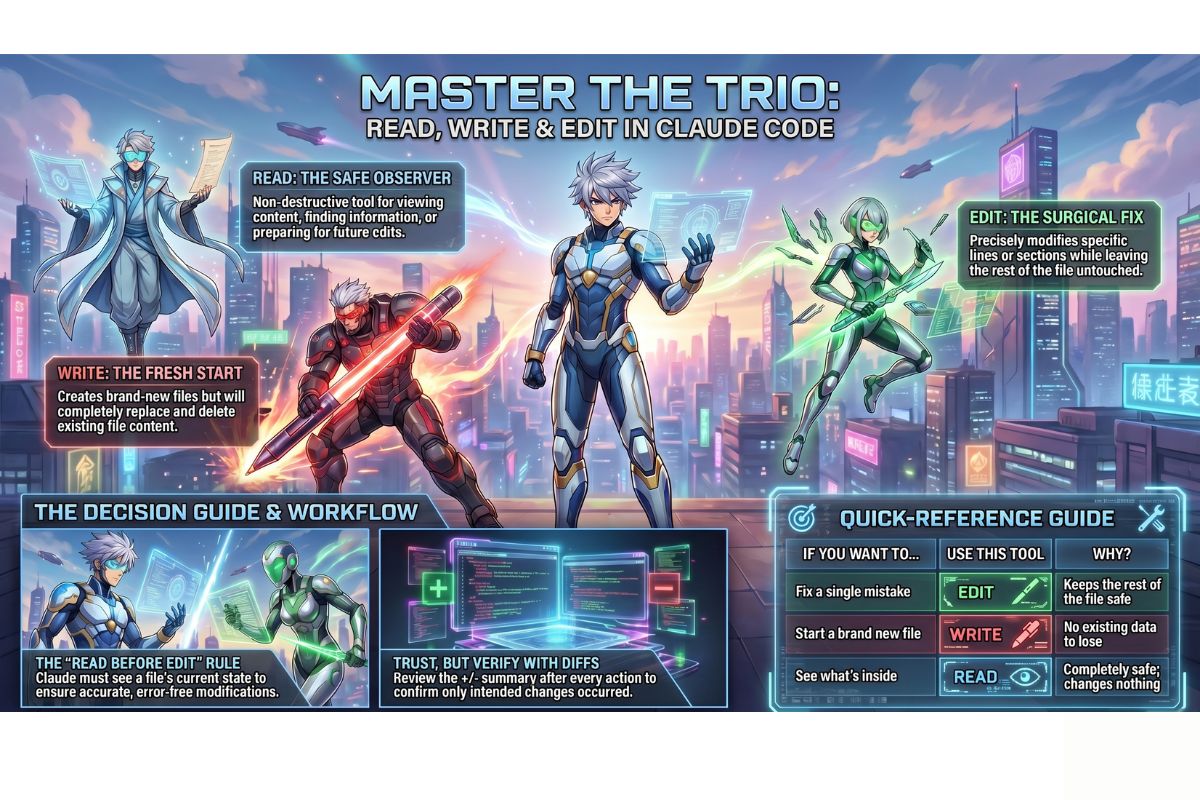
- Read is like picking up a document and reading what it says. Claude looks at the file and understands its contents, but doesn’t change anything.
- Write is like taking a blank piece of paper and writing a completely new document. It creates a brand new file, or if one already exists, it throws away the old version and writes a completely new one.
- Edit is like using a pen to correct one specific sentence in a document. You find the exact spot that needs to change, cross it out, and write the fix. Everything else on the page stays exactly the same.
Understanding when to use each tool is the key to working safely with files and getting exactly what you want.
Understanding Read — Looking at files without changing them
What Read does
When you ask Claude to Read a file, Claude opens it and looks at what’s inside. Claude can then:
- Answer questions about the content
- Summarise what’s in the file
- Find specific information
- Prepare to make changes to it
The important thing: Read never changes anything. It’s completely safe. You can read a file a hundred times and it will stay exactly the same.
Why you need to Read before Edit
This is crucial to understand: Claude must Read a file before it can Edit it. Here’s why.
When you ask Claude to edit a file, Claude needs to see exactly what’s currently in that file. Otherwise, Claude won’t know:
- Where the mistake is
- What to change
- What needs to stay the same
If you skip the Read step and ask Claude to Edit without seeing the file first, one of two things happens:
- Claude will ask you to let it Read the file first
- Claude might make a guess, which could be wrong
Best practice: Always let Claude Read the file before asking for edits. It takes one extra step and saves you from mistakes.
Understanding Write — Creating new files and replacing old ones
What Write does
When you use Write, Claude creates a brand new file with content you specify. Write is perfect for:
- Creating new documents from scratch
- Building files that don’t exist yet
- Generating new code, outlines, reports, or any new content
The danger of Write — it replaces everything
Here’s the critical warning about Write: if a file already exists, Write completely replaces it. The old file is gone.
This is why Write is dangerous if you’re not careful. Imagine this situation:
You have a file called product-descriptions.txt with 20 product descriptions. You ask Claude to “add 5 new product descriptions.” If Claude uses Write instead of Edit, your original 20 descriptions are gone. Only the 5 new ones exist.
This is a common mistake, and it’s why you need to understand which tool to use.
The decision guide — When to use Read, Write, or Edit
Use this table to decide which tool you need:
| Situation | Tool | Why |
|---|---|---|
| I want to see what’s in a file | Read | You’re not changing anything, just looking |
| I’m creating something completely new | Write | No old file exists, so nothing to lose |
| I want to fix one mistake in a file | Edit | You only want to change one small thing |
| I want to add content to an existing file | Edit | You’re keeping everything and adding more |
| I want to replace a whole section | Edit | You want to keep the rest of the file |
| I want to rewrite a file from scratch | Write | You’re starting completely fresh |
| I need to read a file before making changes | Read | Then Edit, not Write |
Real-world example: Using Edit for a targeted fix
Let’s say you have a Python file with a broken function, and you want Claude to fix just that one function. Here’s what you’d do:
Step 1: You ask Claude to Read the file
You say: “Please read my file calculate-price.py“
Claude reads it and sees the entire file.
Step 2: You ask Claude to Edit the broken function
You say: “The calculate-discount function on line 12 is broken. Please fix it so it multiplies the price by the discount rate correctly.”
Claude uses Edit to replace just that one function. The rest of your code stays exactly as it was.
Here’s what that might look like:
Original code (what was broken):
def calculate_discount(price, discount):
    return price - discount  # WRONG: subtracts instead of multiplies

Fixed code (what Edit changes it to):
def calculate_discount(price, discount):
    return price * (1 - discount)  # CORRECT: multiplies by the discount rate
Notice: Claude changed only that one function. If you had 50 other functions in that file, they’d all stay exactly the same. That’s the power of Edit.
Real-world example: Using Write to create something new
Now imagine you want Claude to create a brand new file — maybe a social media post template for your restaurant. You say:
“Create a new file called social-media-template.md with Instagram post templates for restaurants. Include sections for breakfast, lunch, and dinner posts, with example copy and hashtags.”
Claude uses Write to create this brand new file from scratch. You don’t have to worry about Edit because there’s no existing file to preserve. Claude builds the whole thing fresh.
Here’s what that file might look like:
# Instagram Post Templates for Restaurants

## Breakfast Posts

**Caption template:**
"Start your day the right way. Our [DISH NAME] is [DESCRIPTION]. Fresh, made-to-order, and absolutely worth it. 🍳 #FreshBreakfast #SupportLocal"

**Best hashtags:**
#BreakfastGoals #CafeCulture #LocalEats #FoodiesOfInstagram

## Lunch Posts

**Caption template:**
"Lunch break sorted. Try our [DISH NAME]: [DESCRIPTION]. It's the perfect midday fuel. 🍽️ #LunchSpecial #SupportLocal"

**Best hashtags:**
#LunchTime #FoodBlog #LocalFood #HealthyEating
How to review what Claude changed
After Claude uses Edit or Write, Claude shows you a diff — that’s short for “difference.” This is a clear summary of exactly what changed.
A diff looks like this:
- Old version: return price - discount
+ New version: return price * (1 - discount)
The minus sign (-) shows what was removed. The plus sign (+) shows what was added.
Why this matters: Always read the diff to make sure Claude made the change you wanted. It’s your chance to spot mistakes before they become problems.
Best practice: Tell Claude which tool to use
Here’s a simple rule that saves time and prevents mistakes:
When you know what you want, tell Claude which tool to use.
Instead of this: “Fix the contact form on my website”
Say this: “Read my file contact-form.html. Then Edit the validation code on line 24 so that it checks for a valid email address.”
By telling Claude to Read first, then Edit, you:
- Make your intention crystal clear
- Avoid mistakes
- Get exactly what you want faster
What to do if Claude uses the wrong tool
Sometimes Claude will make a choice about which tool to use, and you’ll realise it’s the wrong one. Don’t panic. Here’s how to recover:
If Claude used Write when you wanted Edit
If Claude accidentally replaced your whole file when you only wanted one change:
- Stop immediately. Don’t accept the change.
- Tell Claude: “That’s not what I wanted. I only wanted you to change [one specific thing]. Please read the original file again and use Edit instead of Write to change just that part.”
- Claude will Read the original file and make a precise Edit.
If Claude used Edit when you wanted Write
If Claude tried to Edit when the file doesn’t exist yet:
- Claude will usually ask: “I don’t see this file yet. Should I create it with Write?”
- Say yes, and Claude will create the file fresh.
If Claude couldn’t find something to Edit
If you ask Claude to Edit but Claude can’t find the exact thing you want changed:
- Be more specific. Instead of “Fix the welcome message,” say “In the file
welcome.txt, find the sentence that starts with ‘Hello customer’ and rewrite it to say ‘Welcome to our store.'” - Read the file first. Ask Claude to Read the file before making the edit so you both see what you’re working with.
Practical Exercise — Practice all three tools
In this exercise, you’ll use Read, Write, and Edit in a safe practice environment.
a) Create a new file with Write
Ask Claude to Write a new file called weekly-specials.txt. Ask it to include a template for your restaurant’s weekly specials. The template should have:
- Day of the week
- Dish name
- Description
- Price
- A note about ingredients (e.g., “nut-free” or “vegan option available”)
Wait for Claude to create the file. Read the diff to see what was created.
b) Read the file and understand it
Say: “Please Read the weekly-specials.txt file you just created.”
Claude will show you the entire contents. Ask Claude questions about it:
- “What format is this in?”
- “Can I use this directly on my website?”
- “What would I need to change for my restaurant?”
c) Edit one section to match your restaurant
Now ask Claude to Edit the file. Say something like: “Please Edit the file to change the template so it matches my restaurant. I serve [your cuisine type], and I want to add a section for allergen warnings.”
Claude will use Edit to change just that part. Review the diff to confirm it’s correct.
Common problems and how to fix them
Problem: Claude replaced my file when I only wanted one change
Why it happened: Claude used Write instead of Edit.
How to fix it:
- Ask Claude to Undo or start fresh
- Be explicit next time: “Please use Edit, not Write. I only want to change [specific thing]”
- Always let Claude Read first so it knows what already exists
Problem: Claude asked me to let it Read the file before editing
Why it happened: Claude needs to see the current file to make a safe Edit.
How to fix it:
- Say yes and let Claude Read it
- This is the correct process — it prevents mistakes
- Next time, you can save time by asking Claude to Read first, then Edit in one message
Problem: The diff shows changes I didn’t ask for
Why it happened: Claude made assumptions about what you wanted changed.
How to fix it:
- Don’t accept the changes
- Be more specific about what you want changed
- Give Claude the exact line number, sentence, or section
- Example: “On line 5, where it says ‘Contact us today’, change it to ‘Get in touch'”
Problem: I’m not sure if I should Read, Write, or Edit
How to fix it:
- Ask yourself: “Do I want to keep the rest of the file, or start completely fresh?”
- If keep the rest → use Edit
- If starting fresh → use Write
- If unsure what’s currently in the file → use Read first
- When in doubt, Read first. It’s always safe.
What you have learned in this lesson
- The three file tools do different things: Read looks without changing, Write creates fresh files, Edit makes targeted changes
- Read is always safe — it never changes anything, so you can use it as much as you want
- Write replaces everything — it’s perfect for new files but dangerous if you use it on existing files
- Edit is precise — it changes only the part you specify and leaves everything else alone
- Always Read before Edit — Claude needs to see the current file to make safe changes
- Diffs show you exactly what changed — review them every time to catch mistakes early
- Tell Claude which tool to use — it prevents confusion and saves time
- If Claude uses the wrong tool, you can recover — just ask it to try again with the right tool.