Table of Contents
What this lesson is about
Hooks are automatic actions that Claude Code triggers at specific moments — either just before Claude does something, or just after. They let you build lightweight rules around Claude’s behaviour: log what it changes, warn it away from sensitive files, or notify you when a task is complete. This lesson explains what hooks are, how to set them up, and how non-developers can use them to add safety, accountability, and peace of mind to their Claude Code workflow.
Core concept: the security guard analogy
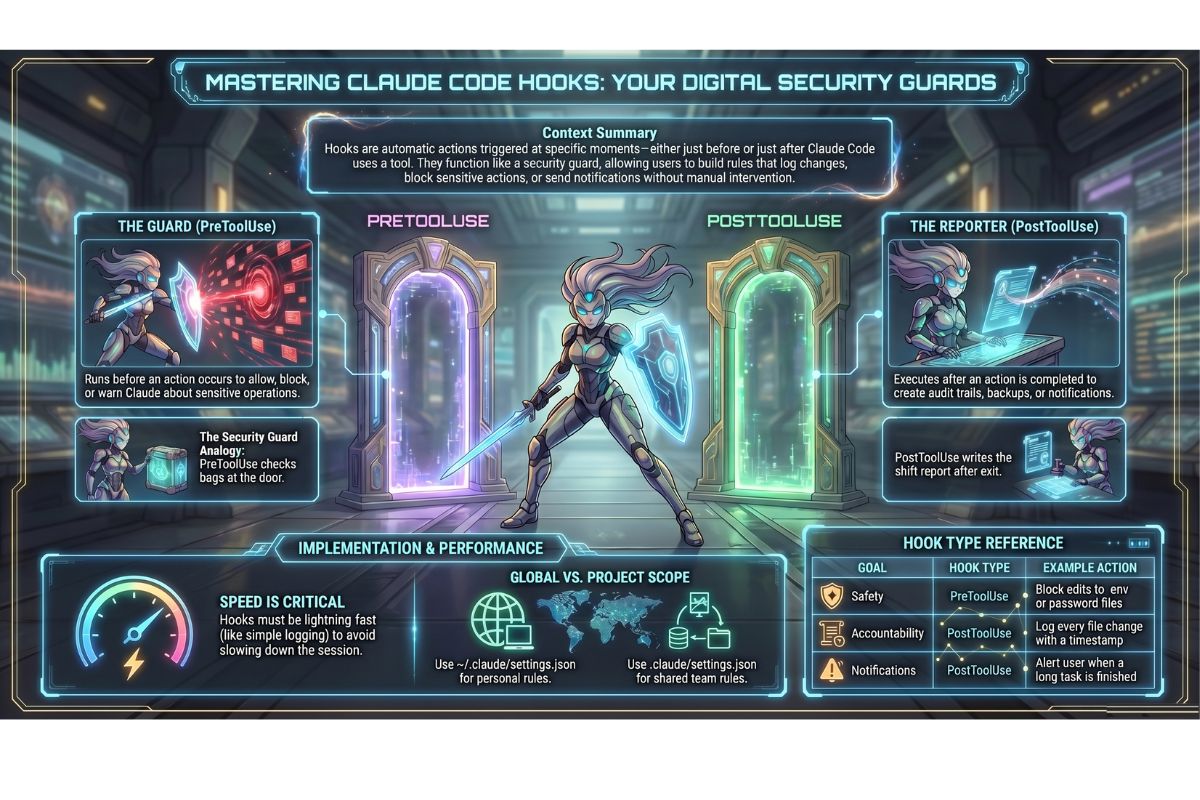
Picture a security guard working at the entrance of a busy office building. This guard has two distinct jobs.
Before anyone enters, the guard checks each person’s bag. If something looks suspicious, the guard can warn the person, refuse them entry entirely, or wave them through and make a note of it.
After each person leaves, the guard writes a brief report: who came, what they were carrying, what time they departed.
Claude Code hooks work in exactly the same way. There are two main types:
PreToolUsehooks — run before Claude uses a tool (writes a file, runs a command, reads something). The hook can warn Claude, block the action completely, or simply observe and log it.PostToolUsehooks — run after Claude has finished using a tool. At this point, the action is already done, so the hook cannot undo it — but it is the perfect place to write a log entry, trigger a notification, or kick off a follow-up process.
The guard does not need to understand everything about the person’s business inside the building. The guard just watches the door and follows the rules you give them. Hooks work the same way: they run automatically, consistently, every single time, without you having to remember to do anything.
The two main hook types in detail
PreToolUse: act before it happens
A PreToolUse hook fires at the moment Claude is about to use a tool — before anything has been changed. This is your opportunity to intervene.
What can a PreToolUse hook do?
- Allow the action — do nothing, and Claude proceeds normally.
- Block the action — the hook signals “stop,” and Claude cannot proceed. Claude receives a short explanation and can try a different approach.
- Warn Claude — the hook sends a message back to Claude explaining a concern, without fully blocking the action.
This makes PreToolUse the right choice for safety rules: “do not touch files with .env in the name,” “do not delete anything in the archive folder,” “always ask before modifying the contracts directory.”
PostToolUse: record what happened
A PostToolUse hook fires after Claude has finished using a tool. The action has already been completed, so you cannot stop it here — but you can record it, react to it, or build on it.
This makes PostToolUse the right choice for:
- Writing an audit trail (a record of every file Claude touched, and when)
- Sending a notification when Claude finishes editing a particular file
- Making an automatic backup of a file immediately after Claude changes it
How to configure hooks in settings.json
Hooks are configured in a file called settings.json. A JSON file (JavaScript Object Notation) is a plain text file with a very specific structure — curly braces, colons, and square brackets — that computers use to store structured settings. You do not need to know JSON deeply; you just need to know where to put the pieces.
There are two places you can store your settings.json, and the choice depends on scope:
| File location | Who it applies to | Best used for |
|---|---|---|
~/.claude/settings.json | You only, across all projects | Personal habits and safety rules |
.claude/settings.json | Everyone in the project | Team-wide rules and shared audit trails |
A quick reminder: ~ is shorthand for your personal home folder on your computer.
Here is what a settings.json file with hooks looks like. Read through it, then look at the plain-English explanation below:
{
  "hooks": {
    "PreToolUse": [
      {
        "matcher": "Write|Edit|MultiEdit",
        "hooks": [
          {
            "type": "command",
            "command": "echo 'Claude is about to edit a file' >> ~/claude-activity.log"
          }
        ]
      }
    ],
    "PostToolUse": [
      {
        "matcher": "Write|Edit|MultiEdit",
        "hooks": [
          {
            "type": "command",
            "command": "echo 'Claude finished editing a file' >> ~/claude-activity.log"
          }
        ]
      }
    ]
  }
}
Here is what each part means in plain English:
"hooks"— the top-level section that tells Claude Code: “everything inside here is a hook definition.”"PreToolUse"/"PostToolUse"— which moment you want this hook to fire: before or after the tool runs."matcher"— a filter that tells Claude Code which tools should trigger this hook.Write|Edit|MultiEditmeans “fire this hook whenever Claude is about to write, edit, or do a multi-file edit.” The|symbol means “or.”"type": "command"— this hook runs a shell command (an instruction to the computer’s command line). The alternative type is"prompt", which asks a Claude model to make a judgement call instead of running a script."command"— the actual instruction to run. In the example above,echois a command that prints text,>>means “append to a file,” and~/claude-activity.logis the file where the text gets written.
You do not need to memorise this structure. You can ask Claude Code itself to help you add a hook: just describe what you want in plain English and Claude will write the configuration for you.
Real example 1: logging every file Claude writes
This hook keeps an audit trail — a permanent, time-stamped record of every file Claude writes or edits. An audit trail is useful for accountability: if you ever need to know what Claude changed and when, the log file will tell you.
Add this to your settings.json:
{
  "hooks": {
    "PostToolUse": [
      {
        "matcher": "Write|Edit|MultiEdit",
        "hooks": [
          {
            "type": "command",
            "command": "echo \"$(date '+%Y-%m-%d %H:%M:%S') - Claude edited a file\" >> ~/claude-audit.log"
          }
        ]
      }
    ]
  }
}
What this does, step by step:
- Every time Claude finishes writing or editing a file, the
PostToolUsehook fires. - The
commandruns a short instruction that gets the current date and time (date '+%Y-%m-%d %H:%M:%S'), adds the message “Claude edited a file,” and appends the whole line to a log file calledclaude-audit.login your home folder. - The log file grows over time. Each line is one event. You can open it at any time to see a full history.
The log file will look something like this after a few sessions:
2026-04-27 09:14:22 - Claude edited a file
2026-04-27 09:14:35 - Claude edited a file
2026-04-27 10:03:11 - Claude edited a file
This is intentionally simple. The goal of a logging hook is speed — write the note quickly and get out of the way. A slow hook delays every single tool call.
Real example 2: warning before any .env file is touched
A file with the extension .env (short for “environment”) is a special kind of settings file that typically contains sensitive information: passwords, secret keys, API credentials. API credentials are like digital passwords that allow your software to connect to online services. These are things you absolutely do not want Claude to modify by accident.
This PreToolUse hook blocks Claude from editing any file whose name matches *.env (any file ending in .env) and sends Claude a clear explanation.
Add this to your settings.json:
{
  "hooks": {
    "PreToolUse": [
      {
        "matcher": "Write|Edit|MultiEdit",
        "hooks": [
          {
            "type": "command",
            "command": "python3 -c \"\nimport sys, json\ndata = json.load(sys.stdin)\npath = data.get('tool_input', {}).get('file_path', '')\nif path.endswith('.env') or '/.env' in path:\n    print('BLOCKED: This file contains sensitive credentials. Do not edit .env files.', file=sys.stderr)\n    sys.exit(2)\n\""
          }
        ]
      }
    ]
  }
}
What this does, in plain English:
- Before Claude writes or edits any file, the hook runs a small check.
- It reads the name of the file Claude is about to touch.
- If the filename ends in
.env, the hook exits with code2— which is Claude Code’s signal to block the action completely. - The message
"BLOCKED: This file contains sensitive credentials"is sent back to Claude, so Claude understands why it was stopped and can tell you. - If the file is not a
.envfile, the hook exits quietly and Claude proceeds as normal.
The result: no matter how you phrase your request, Claude cannot accidentally overwrite your credentials file. The guard at the door will not let it through.
Why hooks must be fast
Every time Claude uses a tool — reads a file, writes a line, runs a search — any hooks attached to that event must finish running before Claude can continue.
Imagine the security guard from our analogy stopping to write a ten-page report before letting each visitor through the door. The whole building would grind to a halt.
The same principle applies to hooks. If your hook takes three seconds to run, and Claude makes twenty tool calls in a session, you have added a full minute of waiting time. If your hook takes ten seconds, the session becomes painfully slow.
Practical rule: keep hooks fast.
- Write a short line to a log file: fast. ✓
- Send a brief desktop notification: fast. ✓
- Upload a file to a cloud service: potentially slow. ✗
- Run a full virus scan on every edit: very slow. ✗
For anything that might take more than a second, do the lightweight part in the hook (write a note to a queue file) and do the heavier processing separately, on your own schedule.
Practical uses for non-developers
You do not need to be a developer to benefit from hooks. Here are four practical uses that any business owner or professional can set up with Claude’s help:
| Use case | Hook type | What it does |
|---|---|---|
| Audit trail | PostToolUse | Logs every file Claude edits, with a timestamp — useful for accountability and reviews |
| Desktop notification | PostToolUse on Stop | Pops up a notification when Claude finishes a long task, so you can step away and come back |
| Safety check | PreToolUse | Blocks Claude from touching sensitive files (passwords, contracts, financial records) |
| Automatic backup | PostToolUse | Copies any edited file to a backup folder immediately after Claude changes it |
For any of these, the simplest approach is to describe what you want to Claude Code in plain English: “Can you add a hook that logs every file you edit to a file called activity.log in my home folder?” Claude will write the configuration for you, and you can paste it into your settings.json.
Practical Exercise
In this exercise you will add a simple audit-trail hook to your project’s settings file. By the end, every file edit Claude makes in this project will be recorded with a timestamp.
a. Open Claude Code in your project. Ask Claude to create or open the project settings file by typing:
Open or create the file .claude/settings.json for this project
If the file already exists, Claude will show you its current contents. If it does not exist, Claude will create it with a basic structure.
b. Ask Claude to add a PostToolUse logging hook by typing something like:
Add a PostToolUse hook that logs the date, time, and the message
"Claude edited a file in this project" to a file called
claude-project-log.txt in my home folder. Only fire this hook
when Claude uses the Write, Edit, or MultiEdit tools.
Claude will write the correct JSON configuration and update the file. The result should look similar to the example in the “Real example 1” section above.
c. Test the hook. Ask Claude to make a small, safe change to any file in the project — for example:
Add a blank line to the end of README.md
After Claude makes the edit, open a new terminal window and type:
cat ~/claude-project-log.txt
cat is a command that displays the contents of a file. You should see at least one timestamped log entry confirming that the hook fired. If you see the entry, your hook is working correctly.
Common problems and how to fix them
The hook does not seem to be running at all
First, check that your settings.json file is valid JSON. A single missing comma or misplaced bracket will prevent the entire file from being read. The easiest fix is to ask Claude to check it: “Please read .claude/settings.json and check it for any JSON formatting errors.”
Next, check that you are using the correct event name. Hook event names are case-sensitive: PreToolUse works; pretooluse or Pretooluse will not.
Finally, if you edited settings.json while Claude Code was already running, you may need to restart the session. Claude Code reads settings when a session starts, and usually picks up changes automatically — but a fresh start is the safest fix.
The hook is running but nothing appears in the log file
Check the path to your log file. If your command writes to ~/claude-audit.log, make sure ~ is resolving correctly on your computer. You can test by opening a terminal and typing echo test >> ~/claude-audit.log — if that creates the file, the path is fine.
Also check that the matcher value matches the tool Claude is actually using. Write|Edit|MultiEdit covers the most common file-editing tools, but if Claude is using a different tool, the hook will not fire.
The hook is blocking something it should not be blocking
If a PreToolUse hook is blocking an action you intended Claude to take, the most likely cause is an overly broad matcher or a condition in the hook script that is matching more files than expected.
Ask Claude to help you narrow the condition: “My .env protection hook is also blocking edits to development.env.example — can you update the hook so it only blocks files that end in exactly .env?”
Claude Code feels much slower since I added a hook
This is the speed problem described in the “Why hooks must be fast” section. Your hook command is taking too long to run.
Look at what the command is doing. If it is connecting to a network service, running a large programme, or processing a lot of data, that will cause slowness. Replace the heavy work with a simple echo command that writes to a local log file, and do any heavier processing separately. Ask Claude to help you rewrite the hook to be faster.
I want to remove a hook temporarily
The quickest way is to open settings.json and add "disableAllHooks": true at the top level of the file, alongside the "hooks" section. This turns off all hooks without deleting your configuration, so you can turn them back on again just as easily by removing that line or changing it to false.
What you have learned in this lesson
- Hooks are automatic actions that fire at specific moments in Claude Code’s workflow — either before or after Claude uses a tool
PreToolUsehooks run before a tool executes; they can allow, block, or warn — making them the right choice for safety rules and access controlsPostToolUsehooks run after a tool has finished; they cannot undo the action, but are ideal for logging, audit trails, notifications, and automatic backups- Hooks are configured in
settings.json, stored either in your home folder (~/.claude/settings.jsonfor personal rules) or in your project folder (.claude/settings.jsonfor team rules) - Each hook has a
matcherthat filters which tools trigger it, atype(usually"command"), and acommandthat runs when the hook fires - A
PreToolUsehook that exits with code2blocks the action and sends Claude an explanation; a hook that exits with code0allows the action to proceed - Hooks must be fast — a slow hook delays every tool call in the session; write to a log file rather than doing heavy processing inline
- You do not need to write hook scripts yourself — describing what you want to Claude in plain English is enough for Claude to write the configuration for you