Table of Contents
What this lesson is about
GitHub Actions is a system that watches your project for specific events — a new file added, a change submitted for review, a label applied — and automatically runs a set of tasks in response, without any human needing to trigger them. This lesson shows how to place Claude inside one of those automated workflows, so that every change to your project is automatically reviewed, summarised, and reported before anyone has to look at it manually.
Core concept: the smart in-tray
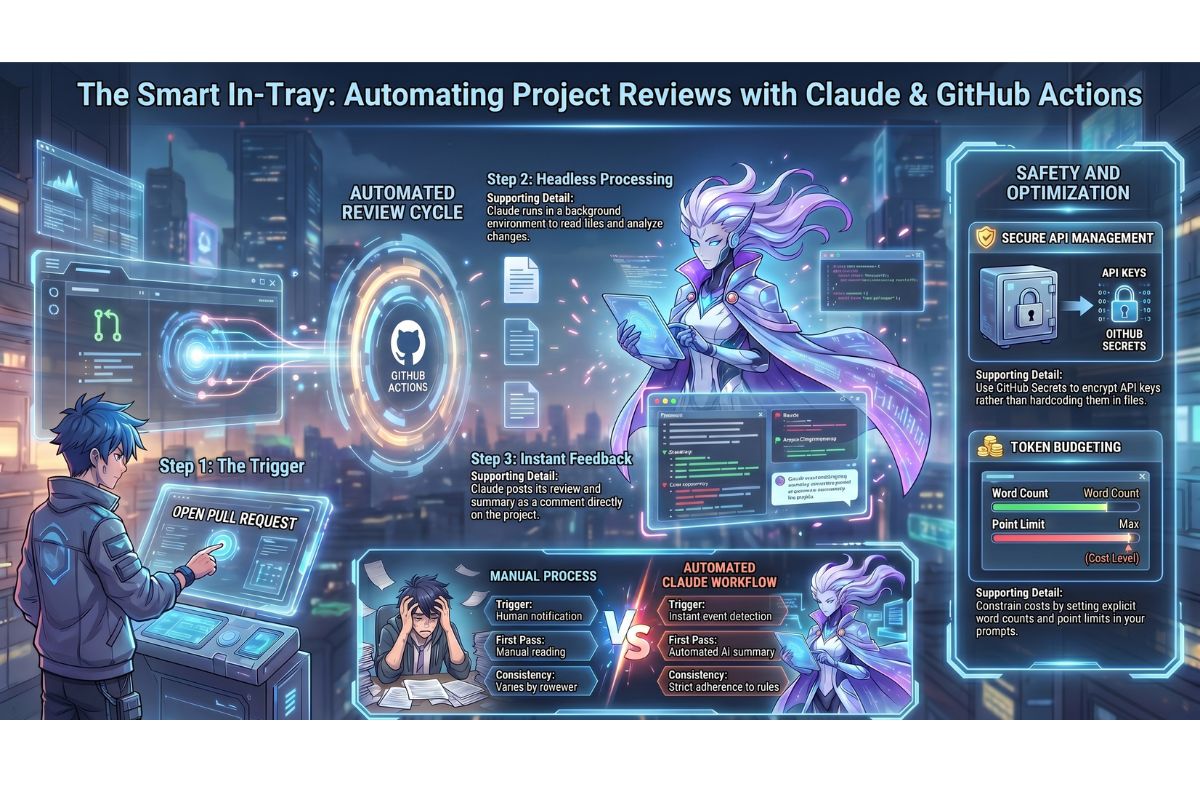
Imagine your office has a physical in-tray. Every time someone places a document in it, a highly capable assistant automatically picks it up, reads it, checks it against your standards, writes a brief summary, clips a note to the front with any concerns, and places it in your out-tray — all before you have even looked up from your desk.
You did not ask the assistant to do this each time. You set up the rule once: “Every time something lands in the in-tray, do these things.” From that point on, it happens automatically, every single time, consistently and without reminders.
GitHub Actions works exactly like this. You write a set of rules — called a workflow — that describes what should happen when a specific event occurs in your project. The event might be a new piece of work submitted for review, a file added to a folder, or a label applied to a task. When that event happens, GitHub runs the workflow automatically. If Claude is part of that workflow, Claude runs automatically too.
What GitHub is, and what Actions adds to it
GitHub is the most widely used platform for storing and managing project files with Git — the version-control system covered in Lesson 17. It hosts your project files online, keeps a full history of every change, and provides tools for teams to review and discuss changes before they become official.
GitHub Actions is an automation layer built into GitHub. It lets you define workflows — sequences of automated steps — that trigger when specific things happen in your project. Actions are used for everything from running automated quality checks to sending notifications to deploying websites automatically when a change is approved.
Adding Claude to a GitHub Actions workflow means Claude becomes one of those automated steps — reviewing, summarising, flagging, or transforming content as part of the pipeline, without any human needing to start it.
What a workflow file is
A workflow file is a plain text file that lives inside your project in a specific folder GitHub recognises: .github/workflows/. The file uses a format called YAML (pronounced “yam-ul”) — a way of writing structured instructions that is more readable than most programming languages. Each line describes something about how the workflow should behave: when it should trigger, what steps it should run, and what tools or credentials it should use.
You do not need to write this file from scratch. As with every technical file in this course, Claude can write it for you once you describe what you want in plain English. But understanding what the file contains helps you know what to ask for and what to check.
A complete workflow file, explained section by section
Here is a full workflow file that adds Claude as an automatic reviewer on every new pull request. Each section is explained in plain English directly before the code.
The name and trigger — what the workflow is called and what event starts it:
name: Claude PR Review

on:
  pull_request:
    types: [opened, synchronize]
This says: “Name this workflow ‘Claude PR Review.’ Run it whenever a pull request is opened, or whenever new changes are pushed to an existing pull request.” The word synchronize means “updated with new commits” — developer language for “someone added more changes.”
The permissions and environment — what the workflow is allowed to do:
permissions:
  contents: read
  pull-requests: write
This says: “This workflow is allowed to read the project files, and is allowed to write comments on pull requests.” Permissions are restricted deliberately — the workflow should only have access to what it genuinely needs.
The job definition — the actual work to be done:
jobs:
  review:
    runs-on: ubuntu-latest
    steps:
This says: “Define a job called ‘review.’ Run it on a standard Linux computer that GitHub provides automatically. The steps to follow are listed below.”
The steps — what actually happens, in order:
      - name: Check out the code
        uses: actions/checkout@v4
This says: “Download the current state of the project files so the workflow can read them.” Without this step, Claude would have nothing to look at.
      - name: Run Claude review
        env:
          ANTHROPIC_API_KEY: ${{ secrets.ANTHROPIC_API_KEY }}
        run: |
          claude --print --no-interactive \
            "You are reviewing a pull request for a small business project.
             Please read the following summary of changes and provide:
             1. A plain English description of what changed and why it matters
             2. Any concerns, inconsistencies, or potential problems you notice
             3. An overall recommendation: Approve, Request Changes, or Needs Discussion

             Changes: $(git diff origin/main HEAD --stat)

             Diff: $(git diff origin/main HEAD)" \
          > review-output.txt
This is the Claude step. It runs Claude in headless mode (--print --no-interactive from Lesson 23), passes in a detailed prompt, includes the actual changes as context, and saves the output to a file called review-output.txt.
      - name: Post review comment
        uses: actions/github-script@v7
        with:
          script: |
            const fs = require('fs');
            const review = fs.readFileSync('review-output.txt', 'utf8');
            github.rest.issues.createComment({
              issue_number: context.issue.number,
              owner: context.repo.owner,
              repo: context.repo.repo,
              body: `## Claude Code Review\n\n${review}`
            });
This final step takes the file that Claude wrote (review-output.txt) and posts it as a comment on the pull request in GitHub. Anyone looking at the pull request will see Claude’s review immediately, formatted as a comment with a “Claude Code Review” heading.
Reviewing pull requests automatically
What a pull request is (a reminder)
A pull request (PR) is the formal, structured way of saying: “I have made some changes — please look at them before they become part of the official project.” It is the review stage between “work in progress” and “accepted and live.” Pull requests are used in both technical and non-technical projects — website copy reviews, document version approvals, content calendar changes.
How the automatic review works
Once the workflow above is in place, the process is entirely automatic:
- Someone submits a pull request — new website copy, a batch of product descriptions, an updated policy document
- GitHub detects the event and triggers the workflow immediately
- Claude reads the changes, applies the prompt instructions, and writes a review
- The review is posted as a comment on the pull request within seconds
- The person who submitted the changes, and anyone reviewing them, sees Claude’s assessment without having to ask for it
This is particularly valuable for teams where not everyone has time to review every change in detail — Claude provides a consistent first pass that catches obvious issues before a human has to spend time on them.
Running Claude only when a specific label is added
Sometimes you do not want Claude to run on every pull request — only on specific ones. You can set the trigger to fire only when a particular label is applied to the PR.
Labels in GitHub are coloured tags you can attach to pull requests — things like “ready for review,” “needs copy check,” or “send to Claude.” They are added manually by a team member when the work is ready.
To trigger the workflow only when the label “claude-review” is added, change the trigger section to:
on:
  pull_request:
    types: [labeled]

jobs:
  review:
    if: github.event.label.name == 'claude-review'
This says: “Only run this workflow when a label is added to a pull request, and only if that label is named ‘claude-review’.” A team member applies the label when they want Claude’s input — not every single PR gets reviewed automatically, only the ones specifically tagged for it.
Storing your API key securely with GitHub Secrets
What an API key is and why it must stay private
An API key is a unique password that identifies you when Claude’s systems receive a request. It is what proves that the request is coming from your account and authorises the use. Anyone who has your API key can use Claude at your expense — which means it must be treated with the same care as a banking password.
The most important rule: never put your API key directly into a workflow file. Workflow files are stored in your project, which means they can be seen by anyone who has access to your project — or, worse, by anyone on the internet if the project is public. A key visible in a workflow file is a key waiting to be stolen.
What GitHub Secrets are
GitHub Secrets are a secure storage area inside your GitHub account for sensitive values like API keys. A secret is stored encrypted, is never displayed after it has been saved, and can be used inside workflows by name — without ever exposing the actual value.
How to add your API key as a secret
In your GitHub project, navigate to the following location:
Your repository → Settings → Secrets and variables → Actions → New repository secret
Add a secret with the name ANTHROPIC_API_KEY and paste your API key as the value. GitHub stores it encrypted immediately. From that point on, your workflow file references it by name — ${{ secrets.ANTHROPIC_API_KEY }} — and GitHub substitutes the real value at runtime, without ever writing it anywhere visible.
The key is used. The key is never exposed. This is the only acceptable way to handle API credentials in a workflow.
Setting a token budget to prevent unexpected costs
Every time Claude runs in a workflow, it consumes tokens and incurs a cost. In a busy project with many pull requests, an unconstrained Claude step could run hundreds of times and accumulate a significant bill before anyone notices.
A token budget sets a ceiling on how many tokens Claude is allowed to use in a single run. Add it to the Claude prompt in your workflow step:
      - name: Run Claude review
        env:
          ANTHROPIC_API_KEY: ${{ secrets.ANTHROPIC_API_KEY }}
        run: |
          claude --print --no-interactive \
            "You are reviewing a pull request. Keep your response concise —
             your entire review must fit within 500 words.

             Provide:
             1. A two-sentence plain English summary of what changed
             2. Any concerns (maximum three, listed briefly)
             3. One-word recommendation: Approve / Changes / Discuss

             Changes: $(git diff origin/main HEAD --stat)
             Diff: $(git diff origin/main HEAD)" \
          > review-output.txt
By specifying “500 words” and “maximum three concerns” directly in the prompt, you constrain the length of Claude’s output, which constrains the tokens consumed. For budget-sensitive workflows, shorter, structured prompts are better than open-ended ones.
Real example: a workflow that summarises every new pull request
Here is a complete, ready-to-use workflow file. It runs automatically every time a pull request is opened, reads the changes, and posts a plain English summary as a comment — including what changed, why it might matter, and any concerns Claude notices.
Save this file as .github/workflows/claude-review.yml in your project:
name: Claude PR Summary

on:
  pull_request:
    types: [opened, synchronize]

permissions:
  contents: read
  pull-requests: write

jobs:
  summarise:
    runs-on: ubuntu-latest

    steps:
      - name: Check out the project files
        uses: actions/checkout@v4
        with:
          fetch-depth: 0

      - name: Install Claude Code
        run: npm install -g @anthropic-ai/claude-code

      - name: Generate summary with Claude
        env:
          ANTHROPIC_API_KEY: ${{ secrets.ANTHROPIC_API_KEY }}
        run: |
          claude --print --no-interactive \
            "You are reviewing a pull request for a small business project.
             Write your response in plain, clear South African English.

             Please provide:

             SUMMARY (2–3 sentences):
             What changed in this pull request, described so a non-technical
             business owner can understand it immediately.

             WHAT THIS AFFECTS:
             Which parts of the project or business this change touches.

             CONCERNS (if any):
             Flag anything that looks inconsistent, incomplete, or potentially
             problematic. If nothing concerns you, say 'No concerns noted.'

             RECOMMENDATION:
             One of: Approve / Request changes / Needs discussion

             --- Changes in this PR ---
             Files changed: $(git diff origin/main HEAD --stat)

             Full diff:
             $(git diff origin/main HEAD)" \
          > summary.txt

      - name: Post summary as a comment
        uses: actions/github-script@v7
        with:
          script: |
            const fs = require('fs');
            const summary = fs.readFileSync('summary.txt', 'utf8');
            github.rest.issues.createComment({
              issue_number: context.issue.number,
              owner: context.repo.owner,
              repo: context.repo.repo,
              body: `## 🔍 Claude Review\n\n${summary}\n\n---\n*Generated automatically by Claude Code*`
            });
When this workflow runs, the pull request receives a comment like this:
## 🔍 Claude Review

SUMMARY
The pricing page has been updated to reflect the new Business tier, renamed
from Standard. The monthly price has increased from R499 to R649. The contact
form now includes an optional phone number field.

WHAT THIS AFFECTS
The public-facing pricing page and the contact form used by prospective clients.
Both changes are customer-visible and affect how new enquiries are captured.

CONCERNS
The pricing change is not reflected in the FAQ page, which still references
the old "Standard" tier name and the R499 price. This inconsistency should
be resolved before the PR is approved.

RECOMMENDATION
Request changes

---
Generated automatically by Claude Code
A reviewer arriving at this pull request sees the summary immediately — without having to read through every changed file. If there are concerns, they are flagged before any human time is spent on a detailed review.
What to do if you do not use GitHub yet
Not everyone reading this course uses GitHub, and that is completely fine. GitHub has a learning curve of its own, and everything in this lesson requires it as a foundation.
If you are not using GitHub yet, treat this lesson as a picture of what becomes possible once you are. The concepts — automatic review, consistent quality checks, structured summaries posted without human intervention — are real and valuable. They are worth understanding now, even if you are not ready to implement them today.
When you are ready, the path forward is:
- Understand Git basics — Lesson 17 is your starting point
- Create a free GitHub account at
github.com - Ask Claude to walk you through creating your first repository (a project hosted on GitHub)
- Return to this lesson and ask Claude to help you set up your first workflow
Claude can guide you through every step of that journey in plain English, one conversation at a time. You do not need to arrive ready — you need to know where you are going.
Practical Exercise
In this exercise you will ask Claude to design a GitHub Actions workflow tailored to your own project — even if you are not ready to implement it yet. Understanding the design is the first step.
a. Describe your project and your review needs to Claude:
I want to design a GitHub Actions workflow that uses Claude to automatically
review changes to my project. Here is what my project involves:
[describe what your project contains — website copy, product descriptions,
policy documents, etc.]
When someone submits a pull request, I want Claude to automatically:
[describe what you want Claude to check — tone consistency, missing fields,
pricing accuracy, grammar, anything relevant to your work]
Please write a complete workflow file for this and explain every section in plain English.
Read through the workflow file Claude produces. Ask it to explain any section you do not understand before moving on.
b. Ask Claude to help you set up the API key secret securely:
I want to store my Anthropic API key as a GitHub Secret so it is never
visible in my workflow file. Can you walk me through exactly how to do
this in GitHub — where to find the settings, what to name the secret,
and how to confirm it is stored correctly?
Follow the steps Claude provides. Once the secret is saved, confirm with Claude that the workflow file references it by the correct name.
c. Ask Claude to help you test the workflow without waiting for a real pull request:
Before I rely on this workflow in production, I want to test it on a
small example. Can you help me create a test pull request with a simple
change — just a minor edit to one file — so I can confirm the workflow
runs correctly and Claude's comment appears as expected?
Walk through the test as Claude guides you. Check that the comment appears on the pull request, that the summary is accurate, and that the format matches what you asked for. If anything needs adjusting, describe the problem to Claude and ask it to update the workflow accordingly.
Common problems and how to fix them
The workflow runs but no comment appears on the pull request
This usually means the pull-requests: write permission is missing from the workflow file, or the final step that posts the comment encountered an error. Ask Claude: “My workflow ran but no comment appeared on the pull request. Can you check the permissions section and the comment-posting step to find what might have gone wrong?” Provide Claude with any error messages shown in the GitHub Actions log.
The workflow fails with “API key not found” or an authentication error
This means the secret is either named differently from what the workflow expects, or was not saved correctly. Check the secret name in GitHub Settings — it must be spelled exactly as it appears in the workflow file (ANTHROPIC_API_KEY in the examples above, with no spaces and no quotation marks). If the name matches and the error persists, delete the secret and re-add it, then run the workflow again.
Claude’s review is too long and costs more than expected
Add explicit length constraints to the Claude prompt inside the workflow: specify a maximum word count, limit the number of concerns to three, and ask for a one-word recommendation rather than a paragraph. Shorter, structured prompts produce shorter, more consistent output and consume fewer tokens. Review the prompt in your workflow file and ask Claude to rewrite it with tighter constraints.
The workflow runs on every PR but you only want it on specific ones
Change the trigger from types: [opened, synchronize] to types: [labeled] and add the label condition if: github.event.label.name == 'claude-review' as shown earlier in this lesson. Tell Claude: “Please update my workflow so it only runs when a pull request has the label ‘claude-review’ applied to it, not on every PR automatically.”
The diff passed to Claude is too large and the response is truncated or confused
Very large pull requests with many changed files can produce diffs that exceed what Claude can handle well in a single prompt. Ask Claude to update the workflow to pass only the --stat summary (a compact list of changed files and line counts) rather than the full diff: “My diffs are getting very large. Can you update the workflow to pass only a summary of what files changed rather than the complete diff, and ask Claude to base its review on that?”
What you have learned in this lesson
- GitHub Actions is an automation system built into GitHub that watches for specific events — a pull request opened, a label applied, a file added — and runs a set of predefined steps automatically in response
- A workflow file is a plain text file saved in a specific folder in your project (
.github/workflows/) that describes when the workflow runs and what steps it follows, written in a format called YAML - Claude can be included as a step in a GitHub Actions workflow, where it runs in headless mode, processes the changes in a pull request, and posts a plain English summary as a comment — automatically, every time
- Triggers can be set so Claude only runs when a specific label is applied to a pull request, rather than on every submission, giving teams control over when automatic review happens
- API keys must never be written directly into a workflow file — they must be stored in GitHub Secrets and referenced by name, so the actual key is never visible to anyone
- A token budget is enforced in practice by writing concise, constrained prompts — specifying word limits, maximum number of points, and structured output formats keeps costs predictable
- If you do not use GitHub yet, this lesson describes what becomes possible when you are ready — the concepts are worth understanding now, and Claude can guide you through every step of getting set up when the time comes