Table of Contents
What this lesson is about
This lesson covers two capabilities that extend Claude well beyond text: vision, which lets Claude see and interpret images, and tool use, which lets Claude call external systems mid-task to fetch live information it was not trained on. Together, these two features mark the point where Claude stops being a document assistant and starts becoming a genuine workflow participant.
The two-skilled colleague — understanding multimodal
Imagine you hire a new member of staff. They are an excellent reader — they can work through any document, summarise it, extract the key points, and tell you what it means for your business. Useful. But then you discover they can also look at a photograph and describe exactly what is in it — read the numbers off a handwritten receipt, interpret a bar chart, identify the items in a delivery photo, extract text from a screenshot. Two skills in one person, working together seamlessly.
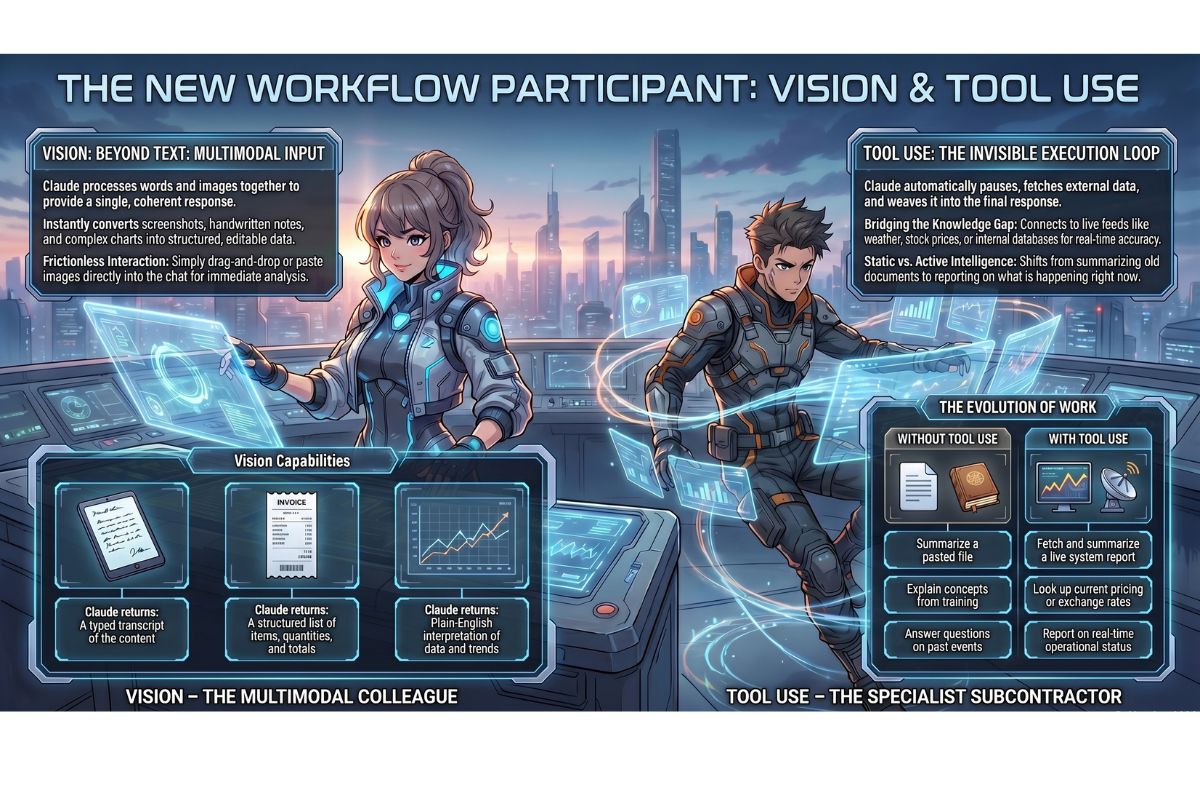
That is what multimodal means in Claude’s context. Multimodal simply means “more than one type of input.” A text-only system is single-modal — it handles words. A multimodal system handles words and images, and potentially other formats too. Claude can read what you type and see what you show it, and it integrates both into a single coherent response.
This is not a gimmick. The ability to process images unlocks an entirely different category of tasks — tasks where the source material is visual rather than textual, which describes a large proportion of real business information.
What you can do with image input
Practical uses in a business context
| Task | What you send | What Claude returns |
|---|---|---|
| Extract text from a screenshot | A screenshot of an email, document, or web page | The full text, ready to copy, edit, or analyse |
| Read a handwritten note | A photograph of handwritten notes or a whiteboard | A typed transcript of the content |
| Analyse a chart or graph | A screenshot or photo of any chart | A plain-English interpretation of the data and trends |
| Process a receipt or invoice | A photo of a paper receipt or printed invoice | A structured list of line items, quantities, and totals |
| Review a photo for content | Any photograph | A description of what is depicted, including text, people, objects, or context |
| Describe a diagram | A screenshot of a flowchart, org chart, or process diagram | A plain-English explanation of what it shows |
How to send an image to Claude
The process is straightforward and requires no technical setup:
- Open a Claude conversation — either in claude.ai, the Claude desktop app, or Claude Code
- Click the paperclip icon or image attachment button in the message input area (the exact label varies by interface, but it is always near where you type)
- Select the image file from your computer — supported formats include
.jpg,.jpeg,.png,.gif, and.webp - Alternatively, on most platforms you can drag and drop an image directly into the chat window, or paste a screenshot directly from your clipboard using
Cmd+Von Mac orCtrl+Von Windows - Type your instruction in the message field alongside the image — for example: “Extract all line items and totals from this receipt”
- Send the message — Claude will process both the image and your instruction together
The image and your text are sent as a single combined message. Claude reads them together, the same way a person would look at a photo while you talk them through what you need.
What tool use is — the specialist subcontractor
Now for the second capability in this lesson: tool use, sometimes called function calling.
Imagine a building contractor working on your office renovation. Midway through the job, they hit a problem that requires an electrician. The contractor does not pretend to be an electrician. They pick up the phone, call in a specialist subcontractor, wait for the result, and then continue the renovation with that new work incorporated. The final job includes both the contractor’s work and the electrician’s — seamlessly combined.
Claude uses tools the same way. When Claude is working through a task and realises it needs information or capability it does not have internally — a live stock price, the current weather, data from your database, a calculation from an external system — it pauses, calls the relevant tool, receives the result, and then continues its response with that new information woven in.
Without tool use, Claude only knows what it was trained on — information up to a certain date, with no access to anything live, current, or specific to your systems. With tool use, Claude can reach out to the real world, mid-conversation, and come back with fresh data.
How the tool use loop works
1. You send Claude a task
        ↓
2. Claude analyses the task and decides a tool is needed
        ↓
3. Claude calls the tool with the appropriate inputs
        ↓
4. The tool runs and returns a result
        ↓
5. Claude receives the result and incorporates it
        ↓
6. Claude continues and completes the response
        ↓
7. You receive a response that includes live, real-world data
This entire loop happens automatically. From your side, you send one message and receive one response. The tool calls happen invisibly in the middle. Claude decides when to call a tool, what to send it, and how to use what comes back — you do not need to manage any of it.
Real-world examples
Example 1: Reading a receipt photograph
The scenario: You photograph a paper receipt from a supplier and want to log all the line items in a spreadsheet without typing them out manually.
What you send to Claude:
A photo of the receipt, with this instruction:
Please extract all line items from this receipt. For each item,
give me: the item description, the quantity, the unit price,
and the line total. Present the results as a table.
Also give me the subtotal, VAT amount, and grand total if visible.
What Claude returns:
| Item | Qty | Unit price (R) | Line total (R) |
|---|---|---|---|
| Corrugated carton 350×250×200 | 500 | 4.20 | 2 100.00 |
| Stretch wrap 500m roll | 12 | 89.00 | 1 068.00 |
| Brown tape 48mm | 24 | 18.50 | 444.00 |
Subtotal: R3 612.00
VAT (15%): R541.80
Grand total: R4 153.80
No manual typing. No transcription errors. The data is ready to copy into a spreadsheet or hand to a bookkeeper. What would have taken ten minutes of careful data entry takes ten seconds.
Example 2: A live weather tool
The scenario: You are building an agent for a food delivery business. You want it to include current weather conditions in a daily operations briefing — because weather affects delivery volumes and you want the briefing to reflect reality, not training data.
You connect a weather tool to Claude. The tool has one job: when given a city name, it returns the current temperature and conditions.
What happens when you ask Claude:
Prepare this morning's operations briefing for our Durban kitchen.
Include current weather conditions and note whether they are likely
to affect delivery demand today.
The tool use loop in action:
Claude reads your request and recognises it needs current weather data. It calls the weather tool with the input "Durban, South Africa". The tool returns:
Location: Durban, South Africa
Temperature: 28°C
Conditions: Partly cloudy, light south-westerly wind
Humidity: 74%
Claude receives this result and incorporates it:
Morning Operations Briefing — Durban Kitchen
27 April 2026

Current weather: 28°C, partly cloudy with light south-westerly winds.
Conditions are warm and dry — historically associated with above-average
lunchtime delivery volumes for the coastal corridor. Recommend ensuring
full driver availability from 11:30.
The key point: Claude did not know the current temperature. It could not have known — that information did not exist when Claude was trained. Tool use is how Claude bridges the gap between what it learned and what is happening right now.
Why this matters for your workflows
Claude can now work with live, current data
Every limitation you have encountered so far — Claude not knowing today’s exchange rate, yesterday’s sales figures, last night’s order count — is addressed by tool use. These are not fundamental constraints of AI. They are constraints of a system that only has what it was trained on. Connect the right tools, and those constraints disappear.
The practical implication
This means the question of what Claude can do for your business is no longer bounded by its training data. It is bounded by what tools you connect it to. And as more tools become available — through plugins, through the Agent SDK, through the growing ecosystem of integrations — the range of tasks Claude can handle in your business expands accordingly.
| Without tool use | With tool use |
|---|---|
| Summarise a document you paste in | Fetch and summarise a live report from your system |
| Explain a concept based on training data | Look up current pricing, rates, or data before explaining |
| Draft a briefing from information you provide | Pull today’s sales, weather, and calendar to build the briefing automatically |
| Answer questions about past events | Report on what is happening right now |
What this means for the future of your work with Claude
You are at the end of the Roof module — the advanced capabilities layer of this course. Look at what you have covered: custom agents, skills and plugins, prompt caching, and now vision and tool use. Each of these is a building block.
As you connect more tools to Claude — your accounting system, your delivery platform, your calendar, your inventory — the complexity of tasks Claude can handle grows non-linearly. A Claude that can see images, call live data sources, follow your skill instructions, and run as an automated agent is not just a smarter assistant. It is a genuine operational participant in your business.
The ceiling is no longer Claude’s capability. It is your clarity about what you need it to do. That is what this entire course has been building toward: the ability to think clearly enough about your workflows that Claude can execute them reliably.
Practical Exercise
a. Find a receipt, invoice, or printed document in your office — paper or digital. If it is paper, photograph it clearly with your phone and transfer the image to your computer. Open a Claude conversation, attach the image, and send this instruction: “Extract all the key information from this document. If there are line items, present them as a table. Identify any totals, dates, reference numbers, or names.” Review the output for accuracy.
b. Take a screenshot of any chart or graph you work with regularly — from a dashboard, a report, a spreadsheet, or a presentation. Attach it to a Claude conversation and ask: “Describe what this chart shows. Identify the main trend, the highest and lowest points, and what this data suggests about performance.” Compare Claude’s interpretation to your own reading of the same chart.
c. Think about one piece of information your business relies on that changes daily or weekly — sales figures, delivery volumes, inventory levels, exchange rates, weather. Write a one-paragraph description of how a tool that fetches that data could change one specific workflow you currently do manually. You do not need to build anything — this is a thinking exercise. The paragraph will become the brief for a future agent when you are ready to build it.
Common problems and how to fix them
Claude cannot read text in the image clearly
Image quality matters. If the photograph is blurry, poorly lit, or at an angle, Claude’s text extraction will be unreliable — the same way a person would struggle to read a blurry document. Retake the photo in good light, flat against a surface, with the camera held directly above. For screenshots, use your computer’s native screenshot tool rather than photographing a screen — the resolution will be significantly better.
Claude describes the image generally instead of extracting specific data
This is a prompt precision issue. Claude defaults to a general description unless you ask for something specific. Instead of “what does this receipt say?”, ask “extract all line items, unit prices, and totals from this receipt and present them as a markdown table.” The more specific your instruction, the more structured and useful the output.
Tool use is returning stale or incorrect data
If a tool is returning data that seems outdated or wrong, the issue is with the tool itself — not with Claude. Claude uses whatever the tool returns; it cannot verify the tool’s data independently. Check the tool’s data source, confirm it is connected to a live feed rather than a static file, and verify that the tool’s credentials or API connection are still active.
Claude says it cannot access a tool that you expected it to use
Claude can only use tools that have been explicitly made available in the current session. A tool that works in one context — through a plugin, an agent configuration, or an API setup — will not automatically be available everywhere. If Claude says it cannot perform a task you expected a tool to handle, check that the tool is connected in the current environment and that it was active at the start of the session.
The image file is rejected or not displayed
Claude supports .jpg, .jpeg, .png, .gif, and .webp formats. If your image is in a different format — .heic from an iPhone, for example, or .tiff from a scanner — convert it first. On Mac, you can open the file in Preview and export it as .jpg. On Windows, open it in Paint and save as .jpg. File size also matters: very large image files may be slow to process or rejected. Resize or compress images over 5MB before uploading.
What you have learned in this lesson
- Multimodal means Claude can process more than one type of input — text and images — interpreting them together in a single response
- Practical vision use cases include extracting text from screenshots, reading receipts and invoices, interpreting charts, and transcribing handwritten notes
- Sending an image to Claude requires only an attachment or paste — no technical setup — followed by a specific instruction about what to extract or analyse
- Tool use (function calling) allows Claude to pause mid-task, call an external system for live data, and incorporate the result into its response
- The tool use loop runs automatically: Claude decides when to call a tool, calls it, receives the result, and continues — you send one message and receive one response
- A receipt extraction example shows how vision removes manual data entry for a common business task
- A weather tool example shows how tool use gives Claude access to information that postdates its training
- Without tool use, Claude is bounded by its training data; with tool use, Claude is bounded only by what tools are connected to it
- The future of your work with Claude is shaped by your ability to identify what workflows need automating — the capability to execute them already exists
- This lesson completes the Roof module — the full foundation from terminals to agents, vision, and live data is now in place